
When a user clicks on your site, they expect it to load immediately.
Having elements load late can create a terrible user experience and usually results in a high bounce rate.
In this edition to my site audit series, I worked on bringing my page speed score all the way up to 100.
Image Optimization
Using PageSpeed Insights, I found a few images on my homepage that were excessively large. This is because I uploaded them directly onto the page itself.
I fixed this by re-uploading the images to my media library then adding them to my homepage.

Minifying CSS
According to Google Search Console, there were a few CSS files that were slowing down my sight.
I used a plugin called Autoptimize to minify JS, CSS, and HTML files.
These are the settings I used.


Resolving a Multiple H1 Warning
The H1 tag is the main heading of a page. This is one of the main signals Google and other search engines use to identify to topic of your content.
Having multiple H1 tags can confuse search engines because they don’t know which heading better represents the content of the page.
According to AIOSEO, a WordPress plugin, I had two H1 tags on my homepage.
I found the incorrect H1 tag in the footer of my site and changed it to an H2.
The Results
After making these changes I was able to bring the desktop loading speed score up to 100.
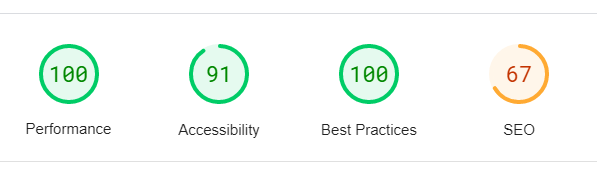
Next week, I’m going to be tackling some of these SEO tasks and hopefully seeing a big improvement in user experience.